
Screen Recorder: Facecam Audio
Prometheus Interactive LLCVideo Players & Editors
4.410.67K Reviews
- Version
- 2.7.3
- Installs
- 10.00M
- Age Rating
- Everyone
Screenshots
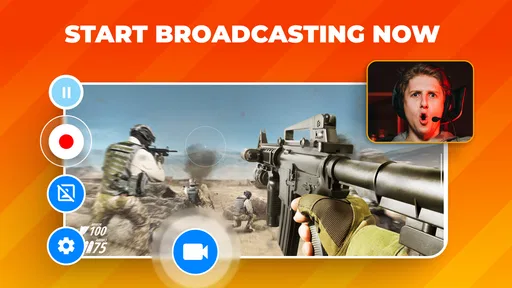
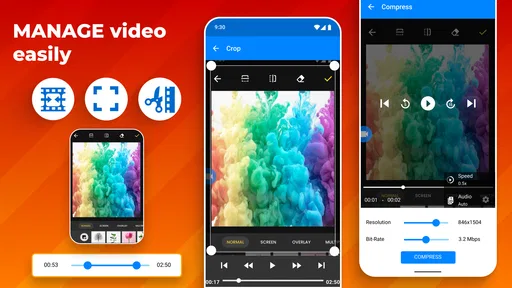
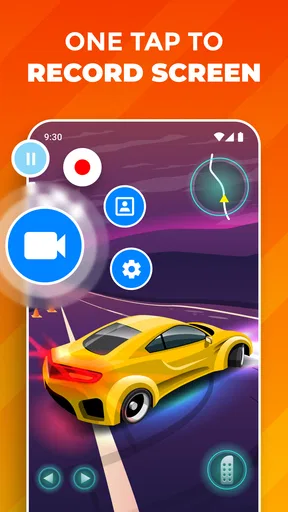
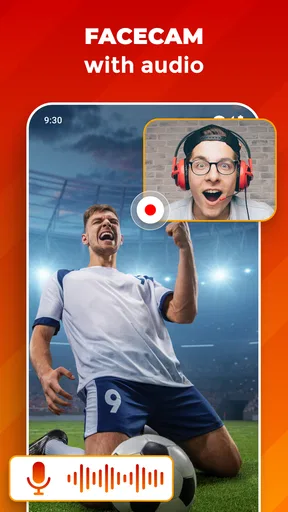
Our Review of Screen Recorder: Facecam Audio
 Analysis by Appyee
I judge a screen recorder by how quickly I can get from an idea to a usable clip, and by whether the recording captures the part I meant to show without making the process feel like a project. Screen Recorder: Facecam Audio is aimed at that everyday job: recording what happens on an Android screen, with options that can make a clip more personal or easier to explain. It is free to install, though in-app purchases range from $0.99 to $99.99 per item, so I would treat the free experience as a starting point and check the purchase options before relying on a paid feature.
Choose it for a quick, explainable recording
This app makes the most sense when the screen itself is the subject: a short gameplay moment, a walkthrough, a demonstration, or a bug you want to show someone instead of trying to describe in a message. The facecam option can add your reactions or keep your face visible while you explain what is happening. That is useful when your audience benefits from seeing you, but it is not essential for every clip. For a clean screen-only capture, leaving the camera overlay off keeps the image less busy.
Before recording, I would decide what the final clip needs to communicate. A game highlight may benefit from microphone commentary and a facecam, while a settings tutorial is usually clearer with the screen doing all the talking. A quick test recording is a sensible habit: check that the right audio source is active, that the overlay is not covering a button or important text, and that the opening seconds are worth keeping. Those small checks save more frustration than trying to fix a confusing recording afterward.
Getting Started with Screen Recording
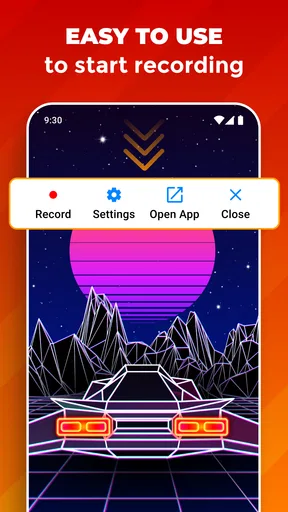
When I first downloaded Screen Recorder: Facecam Audio, I was curious to see if it would live up to the expectations. The installation was a breeze, and within moments, I was ready to start recording. The app's interface is clean and user-friendly, making navigation straightforward even if you're not tech-savvy. I was particularly impressed with how the app combines functionality with simplicity.
Features That Stand Out
One of the first things that caught my attention was the ability to record both the screen and audio simultaneously. This is fantastic for anyone looking to create tutorials or gameplay videos. Plus, you can use the facecam feature to add a personal touch to your recordings. Imagine being able to show your reactions while playing a game or explaining a concept—it's a game-changer!
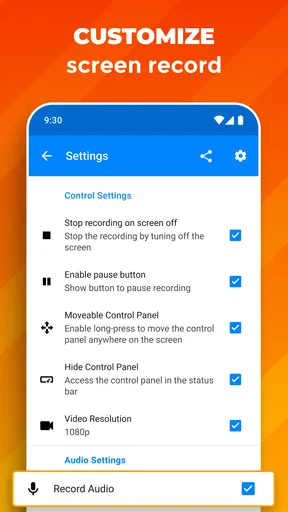
The app also offers customization options. You can choose the resolution, frame rate, and even the bit rate. Whether you're aiming for a quick recording or a high-quality production, the app has you covered. And let's not forget the audio settings. You can toggle between internal audio, microphone, or both, which adds another layer of versatility.
Audio and overlay choices make a difference
For a tutorial, narration can clarify why you are tapping a particular control; for a gameplay clip, a live reaction can give the recording more personality. But recording both system sound and microphone audio is not automatically better. If the game or app is already loud, your voice may be harder to hear, so I would test the balance before capturing a long session. If the goal is to preserve a sound effect or an in-app demonstration, skip commentary unless it adds something useful.
The facecam is similarly a choice rather than a default. It can make an explanation feel direct, but a floating camera window can obscure small controls, subtitles, or details near the edge of the display. I would position it where it does not cover the action and keep it off for walkthroughs where every part of the interface matters. A short sample is especially helpful when switching between portrait and landscape content, because the best overlay position depends on what the recording needs to show.
Editing Made Easy
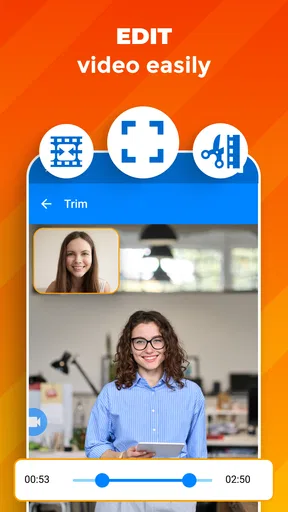
After recording, I was eager to dive into the editing features. While the app doesn't replace professional editing software, it offers tools for basic edits. Trimming the video or adding background music was so simple, I felt like a pro editor! The draw and text features also allow for annotations, making it easy to emphasize points in your video.
Keep the workflow simple
Basic edits are most useful when they solve a small, specific problem: trim away the wait before a game begins, remove the part where you are finding the right menu, or add a brief label that tells viewers what to notice. I would use the drawing and text tools sparingly. A mark can direct attention to a control, but too many annotations can compete with the screen and make a simple demonstration harder to follow.
For anything that needs a carefully timed voice-over, several layers, detailed captions, or a polished sequence of scenes, I would move the recording into a dedicated video editor. Screen Recorder: Facecam Audio is better suited to capture and quick cleanup than to a full production workflow. That distinction matters if you are choosing an app for regular publishing: the faster in-app route is convenient, but it does not remove the need for another tool when your edit becomes complex.
Sharing Your Creations
Once you're satisfied with your masterpiece, sharing options are right at your fingertips. You can directly upload your videos to platforms like YouTube or share them with friends via social media. This seamless integration is perfect for those who want to get their content out there quickly, without the hassle of transferring files between devices.
A realistic use from capture to share
Imagine a friend asking how to find a setting buried in an app. I would start a brief screen recording, speak only when a step needs context, and keep the camera overlay disabled so the buttons remain visible. Afterward, I would cut the initial delay, add a short annotation to the key control, then share the clip directly. That is the kind of modest, practical job where the combination of recording, light editing, and sharing can save time without turning a simple answer into a lengthy tutorial.
For a gameplay highlight, I would take the opposite approach: enable the facecam if my reaction is part of the appeal, make sure the microphone is capturing what I want to say, and check that the camera window stays clear of the action. If the result is only meant for a friend, a quick share is enough. If it is intended for a public channel, I would review the whole clip first for private notifications or unrelated screen content. A recorder captures what appears during the session, so preparing the screen is part of making a considerate recording.
Performance and Reliability
Now, let's talk about performance. During my tests, the app ran smoothly without any crashes or lags. The recordings were crisp and clear, and the audio was perfectly synced. I appreciated the stability, especially when recording longer sessions. It's clear that the developers have put effort into ensuring the app delivers a reliable experience.
What to check before a longer session
Even when a recorder feels straightforward, longer capture deserves a little planning. I would close distractions, decide whether narration is needed, and record a short test before committing to a full match or demonstration. That test gives you a chance to check the framing and sound while the cost of a mistake is still small. For a one-off clip, this may seem like an extra step; for a recording you cannot easily repeat, it is a worthwhile safeguard.
Screen recording can also be demanding in a way that ordinary app use is not: a game, camera overlay, and audio capture all contribute to a busier session. I would avoid assuming that one successful short clip guarantees every long session will suit the same settings. If a recording is important, keep the setup simple and verify the result before sharing it. This is practical caution, not a reason to avoid the app; it helps keep the recording task predictable.
Where other recording approaches fit better
Android’s built-in screen recording, where available, is often the simplest choice when you only need a basic capture and do not need extra presentation tools. It avoids adding another app to your workflow. A dedicated editor is the better next step when you need more control over pacing, titles, sound, or multiple clips. The advantage here is the middle ground: a recorder with facecam, audio choices, and lightweight editing in one place, rather than a bare capture tool or a full editing suite.
That middle ground is not right for everyone. If you make polished videos regularly, you may prefer to record with the tool that best fits your device and then edit in software designed for detailed post-production. If you only capture a screen once in a while, the built-in option may be enough. I would choose this app when the camera overlay or the recording-and-share workflow is genuinely useful, not simply because it offers more controls.
Things to Keep in Mind
While I'm a fan of the app, there are a few things to be aware of. The free version has some limitations, such as a watermark on videos. If you're planning to use it frequently, you might want to consider the premium version to unlock all features. Another thing is the occasional ads, which can be a bit distracting, but they’re not a dealbreaker for me.
Who will get the most from it
I can see this being a good fit for people who explain phone tasks to family, share short game moments, or make informal tutorials where their voice or face adds context. It is also practical for someone who wants to capture a problem on screen and send a visual example to a friend or support contact. The appeal is strongest when you need a little more than a silent screen capture but do not want to build a multi-app workflow for every clip.
I would steer away if you need a fully controlled production environment, if every recording must be edited into a polished video, or if you do not want ads or purchase prompts in a free app. Before committing to a regular workflow, record a representative clip and check whether the watermark and available tools meet your needs. Since the app includes in-app purchases, I would make that decision based on the features you actually use rather than assuming a paid upgrade is necessary.
Compatibility and confidence before installing
Screen Recorder: Facecam Audio is an Android app from Prometheus Interactive LLC. It was released on March 16, 2016, and its current version is 2.7.3, with Android 5.0 as the minimum operating system requirement. Its age rating is Everyone. Those details make it easy to judge basic fit: check that your device meets the operating-system requirement, then consider whether you want a simple recorder with optional facecam and audio choices rather than a more specialized editor.
Its average rating is 4.3 from around 642,000 ratings, with about 11,000 written reviews and over 10 million installs. That reach suggests many people have tried it, but popularity alone cannot tell you whether its workflow suits your recordings. I would give more weight to a short test on your own device, especially if the clips matter or you plan to use the facecam and microphone together.
One practical question is whether you need to record internal audio, your voice, or both. The app offers those choices, so decide what the viewer needs to hear before you start; a quick sample is the safest way to catch an unsuitable mix. Another is whether it can replace an editor. For trimming and simple annotations, it may be enough, but I would use a separate editor when the project requires more detailed control. And if you are unsure about paying, start with the free option and only consider an in-app purchase after you know which limitation is actually getting in your way.
Overall, Screen Recorder: Facecam Audio is a solid choice for anyone needing a reliable screen recording app. Whether you're a content creator or just someone who wants to save memorable moments, this app offers a comprehensive set of tools to meet your needs. Give it a try, and you might find it becoming an essential part of your digital toolkit!
Verdict
Strengths of Screen Recorder: Facecam Audio
- High-quality video recording capability.
- Easy-to-use interface for beginners.
- Includes facecam feature for reactions.
- Supports external audio recording.
- Multiple export options available.
Limitations of Screen Recorder: Facecam Audio
- Contains ads in the free version.
- Limited editing tools in-app.
- Requires in-app purchases for some features.
- May cause device overheating.
- Large file sizes for high-quality videos.
Other Releases by Prometheus Interactive LLC
View All
Sound Booster・Increase Volume
Music & Audio4.8

GPS Navigation: Live Earth Map
Travel & Local4.0

Logo Maker : Graphic Designer
Business4.6

Cute Lock Screen & Wallpapers
Beauty4.6
Similar Picks in This Category
View All
Google TV
Google LLC3.9

iTunes
Apple4.7

YouTube
Google LLC3.8

MX Player
Amazon Mobile LLC4.2

CapCut - Video Editor
Bytedance Pte. Ltd.3.5

PLAYit-All in One Video Player
PLAYIT TECHNOLOGY PTE. LTD.4.5
Frequently Asked Questions
How does Screen Recorder: Facecam Audio work?
Screen Recorder: Facecam Audio allows users to easily record their screen activities on both Android and iOS devices. It offers features like high-quality video recording, the ability to capture audio, and integrate facecam footage. The app is designed to be user-friendly, providing intuitive controls and customizable settings to tailor the recording experience.
Can I record audio and use the facecam simultaneously?
Yes, Screen Recorder: Facecam Audio supports simultaneous recording of both audio and facecam. This feature is perfect for creating tutorials, gameplay videos, and presentations. Users can easily enable the microphone to capture their voice along with the on-screen activities, and the facecam overlays the video for a personalized touch.
What are the video quality options available?
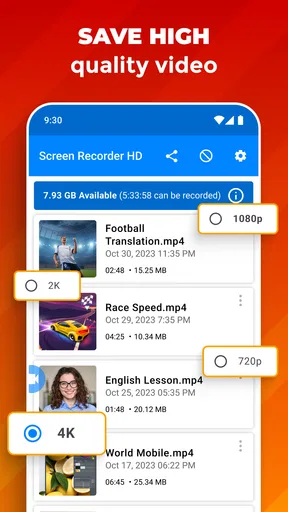
The app offers a range of video quality settings to suit different needs and device capabilities. Users can choose from various resolutions, including 720p, 1080p, and even 4K on supported devices. Additionally, you can adjust the frame rate and bit rate to optimize the recording for better performance or quality, depending on your requirements.
Is Screen Recorder: Facecam Audio free to use?
Screen Recorder: Facecam Audio offers a free version with basic features, which is sufficient for standard screen recording tasks. However, there are in-app purchases and subscription options available, which unlock advanced features such as watermark removal, extended recording time, and additional editing tools, providing a more comprehensive recording experience.
Does the app store my recordings on the cloud?
No, Screen Recorder: Facecam Audio does not automatically store your recordings on the cloud. All recordings are saved locally on your device, ensuring your privacy and control over your content. If cloud storage is desired, users can manually upload their recordings to preferred cloud services or share them directly from the app.
